No support. Enve-Nope is a vibe-coded app (made with AI) and comes with no support of any kind. This guide and the user guide are the only help. Enve-Nope is a product of Cylindrium LLC (envenope.com).
Admin guide: installing it on the church PC, connecting phones with Tailscale, adding people, and keeping it running. For the people who enter envelopes, there is a separate User guide.
1. What it is and what you need
Enve-Nope turns a stack of weekly offering envelopes into a spreadsheet with three columns: date, envelope number, amount. People photograph each envelope with a phone (or read them aloud). A program on the church PC sends each photo to Claude (an AI from Anthropic) to read the envelope number and the handwritten amount. Anything it is not completely sure about is shown on the phone for a person to check. An amount is never guessed.
You need
A Windows PC (Windows 10 or 11) that stays on while envelopes are being entered. It holds everything: photos, the spreadsheet, the donor list.
A Claude API key from console.anthropic.com, with a few dollars of credit. Reading costs about 2 cents per envelope (two readings each, to double-check the amount).
A Tailscale account (free for personal use), so phones can reach the PC privately from anywhere. See section 4.
Phones: Android (Chrome) works best. iPhone (Safari) works for photos and checking; reading aloud depends on the iPhone's speech support.
About 20 minutes for the first setup.
Tip: create a Google (or Microsoft) account just for the church's envelope work, and use it for both Tailscale and the Claude console. Then nothing depends on one person's private accounts, and people you add only ever join the church's Tailscale, not yours.
2. Installing on the PC
Unzip the package into a folder that stays put, for example Documents\Enve-Nope. (Right-click the zip, Extract All.) Do not run it from inside the zip.
Double-click START.bat. A black window opens and:
installs Python if the PC does not have it (about a minute),
installs Tailscale if it is missing. Windows asks "Do you want to allow this app to make changes?": click Yes,
starts Enve-Nope in the background and adds it to Windows start-up,
opens the setup page in your web browser.
Leave the black window; it closes when you press a key. Enve-Nope keeps running without a window.
If Windows shows "Windows protected your PC", click More info, then Run anyway. START.bat is a plain text file you can open in Notepad to see exactly what it does.
The setup page's address is http://localhost:8000/setup?t=.... It works only on this PC. Double-clicking START.bat again later shows the address again and reopens setup when needed.
3. The setup page, step by step
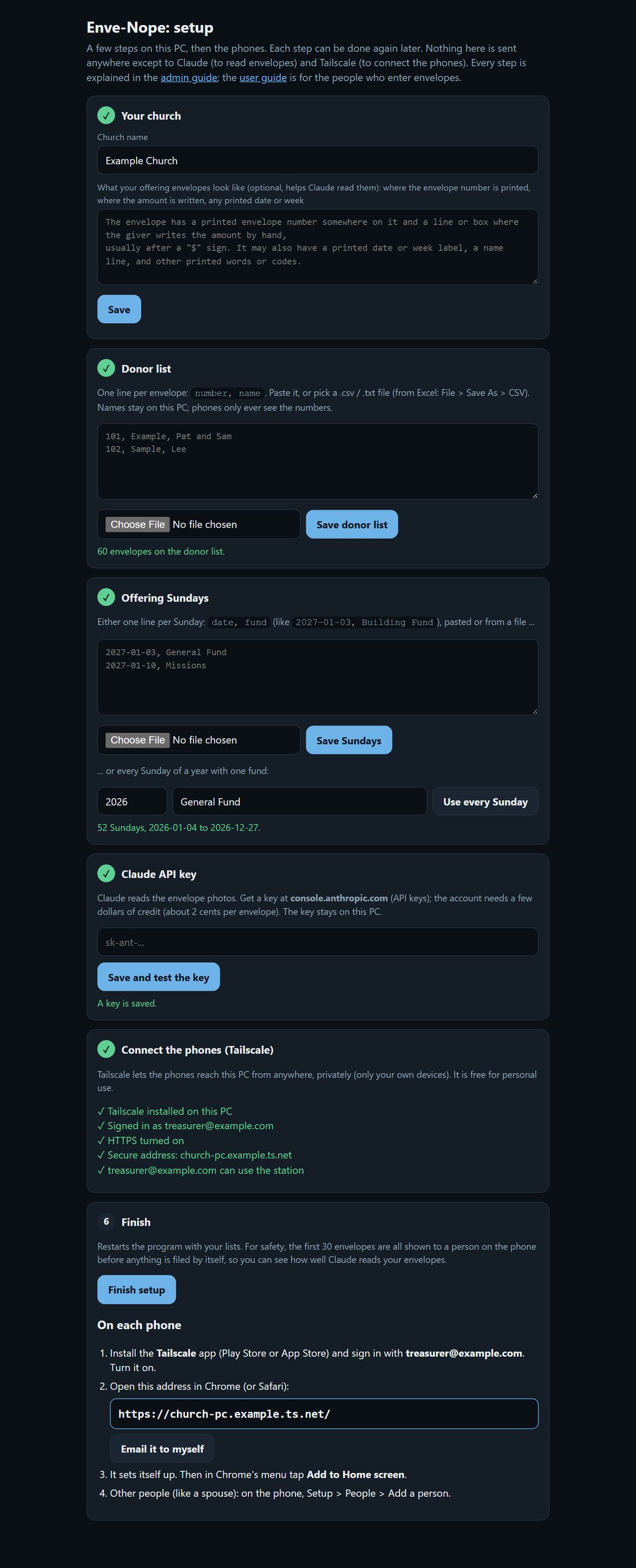
Each step shows a green tick when done, and each can be done again later (for example to load next year's Sundays).
The setup page when every step is done (a made-up "Example Church"). Under Finish: what to do on each phone.
Step 0: Activation key
Tick the box that says you understand there is no support, paste the activation key from your purchase email and click Activate. It is checked once with the store (the PC must be online for this one step) and then never again. Each key activates one copy, and also holds your 5 updates (see Updates). The key tells the PC which edition you bought: with or without year-end statements. Until it is activated, phones can take photos but nothing is read, and setup cannot be finished.
Step 1: Your church
Type the church's name. Optionally describe your envelopes in a sentence or two; Claude reads better when it knows where to look. For example:
The envelope number is printed in the top right corner. The amount is handwritten on the line after "$" in the middle. A Sunday date is printed at the top, like "May 3".
Step 2: Donor list
One line per envelope: the envelope number first, then the name. Paste it, or pick a CSV file (in Excel: File > Save As > CSV). For example:
101, Example, Pat and Sam
102, Sample, Lee
A heading line ("envelope, name") is fine. Lines without a number are pointed out before saving. Names stay on the PC; phones only ever receive the list of numbers, to warn when an envelope number is not on the list.
Step 3: Offering Sundays
Either one line per Sunday, the date then the fund collected that Sunday:
2027-01-03, General Fund
1/10/2027, Missions
... or, if you collect for one fund every week, type the year and the fund and click Use every Sunday. Dates that are not Sundays are pointed out before saving.
Under Billing, add a few dollars of credit. $10 reads roughly 500 envelopes.
Under API keys, click Create key, give it a name like "Enve-Nope", and copy it. It starts with sk-ant-.
Paste it on the setup page and click Save and test the key. "Claude answered. The key works." means it is ready.
The key is stored only on this PC (in config.json). It is never sent to the phones.
Step 5: Connect the phones (Tailscale)
See section 4: the page has a button for each part.
Step 6: Finish
Click Finish setup. The program restarts with your lists, and the page shows the phone address (like https://envelope-station.your-tailnet.ts.net/) with an Email it to myself button.
Safety for the first envelopes: after setup, the first 30 envelopes are all shown to a person on the phone, even when the reading looks certain. That way you see how well Claude reads your envelopes before it files any by itself.
4. Tailscale: connecting the phones
Tailscale makes a private connection between your phones and the PC, wherever they are (church Wi-Fi, home, mobile data), without opening anything to the internet. Only devices signed in to your Tailscale account can reach the PC.
On the PC (from the setup page, step 5)
Sign in to Tailscale: click the button. A Tailscale page opens; sign in (with the church Google/Microsoft account, see the tip in section 1). Come back to the setup page: it shows "Signed in as ...".
HTTPS turned on: click Open Tailscale DNS settings. Scroll to HTTPS Certificates and click Enable. (Phones need https to use the camera.) The setup page updates by itself.
Secure address: click Turn it on. This gives the PC its phone address and keeps it after restarts.
Allow your account: click Allow, so your own phone can use the station.
Do this once, so the connection never expires: open login.tailscale.com/admin/machines, click the ... next to the PC (named envelope-station), and choose Disable key expiry. Otherwise Tailscale asks for a new sign-in on the PC after about six months, and the phones cannot connect until someone does it.
Your own phone
Follow the User guide (it is the same for you): install the Tailscale app, sign in with the same Tailscale account, turn it on, open the phone address, and add it to the home screen. You do not need an invite for your own account.
5. Adding and removing people
Everyone uses the same station. Each person uses their own phone and their own Tailscale sign-in; the station records who confirmed or entered each envelope. Each person has one of two roles:
Role
Can use
Admin
Everything: Capture, Voice, Photos, Review, Weeks (totals, deposits, spreadsheet), year-end statements (donor names), People, the Claude key, status and cost, restart, start over, turn off.
Enters envelopes only
Capture, Voice, Photos and Review. No totals, no spreadsheet, no statements or donor names, no settings. Meant for helpers.
The PC checks the role on every request, so hiding a button is not the only protection. New people get Enters envelopes only unless you choose otherwise; change it later with the button next to their name. Nobody can take away their own admin role.
Adding a person (about 5 minutes, two people)
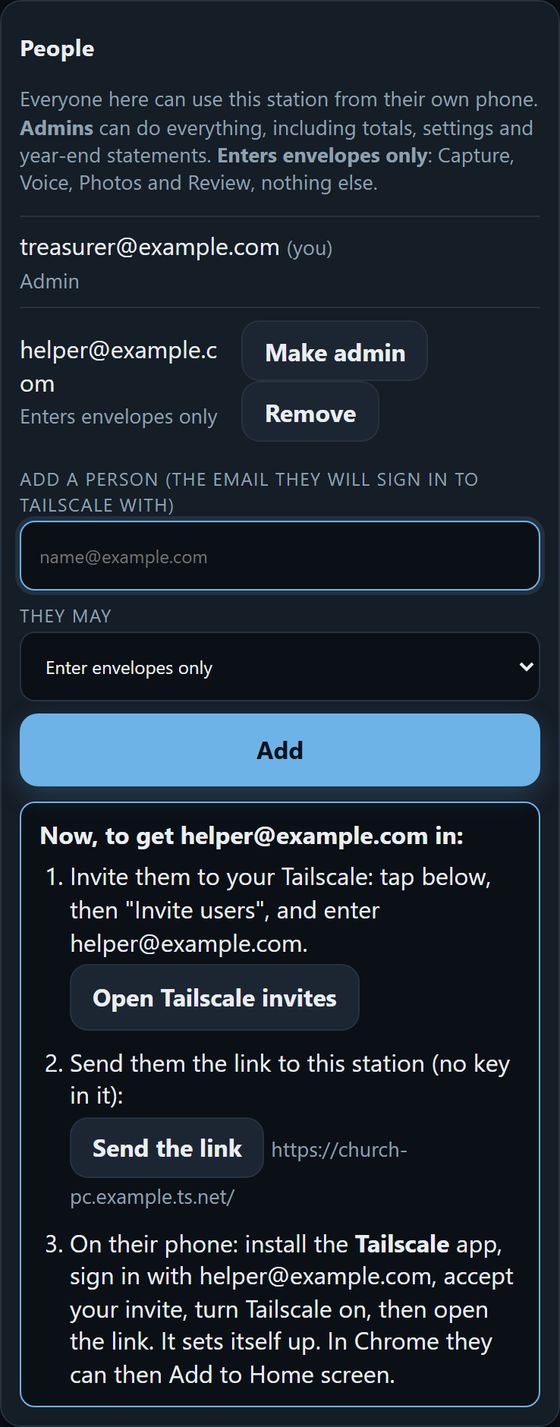
You, on your phone: open Enve-Nope, tap Setup, scroll to People, type the email they will sign in to Tailscale with, choose what they may do, and tap Add. Three steps appear:
Invite them to Tailscale: tap Open Tailscale invites (it opens login.tailscale.com/admin/users), click Invite users, and enter the same email. Tailscale emails them an invite. Only the account owner can do this.
Send them the link: tap Send the link and send it by text or email. The link has no key or password in it: it only works for people on your Tailscale who are also on the People list.
Them: they follow the User guide (accept the invite, install Tailscale, open the link). Their phone sets itself up.
Setup > People, right after adding someone: the three steps.
The email on the People list must be exactly the one they sign in to Tailscale with (for example their Gmail address if they choose "Sign in with Google").
Removing a person
On your phone: Setup > People, tap Remove next to them, then tap again to confirm. Their phone can no longer use the station.
In Tailscale: Users, click the ... next to them, Remove user.
Nobody can remove themselves, so the list can never lock everyone out.
6. Day to day: running, data, backups
It runs by itself
Enve-Nope starts by itself whenever someone signs in to Windows, and restarts by itself if it ever stops. It has no window; Task Manager shows it as Enve-Nope.exe (Details tab).
Keep the PC awake while envelopes are being entered: Settings > System > Power, set "When plugged in, put my device to sleep after" to Never. Photos taken while the PC is asleep wait safely on the phone and are sent when it wakes.
Restart it from a phone: Setup > Restart the PC program.
Turn it off (it stays off, even after the PC restarts): on a phone, Setup > Turn off the PC program; or double-click STOP.bat on the PC. Turn it back on by double-clicking START.bat.
Where everything is (in the Enve-Nope folder)
What
Where
The spreadsheet: date, envelope, amount (only checked or certain envelopes)
captures\offering_log.csv (also Weeks > Download spreadsheet on a phone)
A photo of each filed envelope, one folder per Sunday
captures\weeks\2027-01-03\101.jpg
Every photo as taken
captures\<folder>\0001.jpg
Photos discarded on a phone (never deleted)
captures\_discarded, captures\_undone
Everything after "Start over" (archived, never deleted)
captures\_old\<date and time>
Donor list, Sundays, church name
church\
Who confirmed, changed or discarded what, and when (also Weeks > Change history)
captures\history.jsonl (one line per change)
What Claude has cost, per day (also Setup > Status and cost)
usage.json
Claude key, People list, phones with notifications
config.json (keep private)
What the program did (for troubleshooting)
station.log
If the spreadsheet is open in Excel, the station cannot update it; the phones say so. Close Excel, or use the phone's Download button, which always gives a fresh copy.
Backups
Copy the whole Enve-Nope folder to a USB drive or cloud folder now and then (at least the captures and church folders and config.json). Everything needed to rebuild is in that one folder.
Cost, half-price reading and notifications
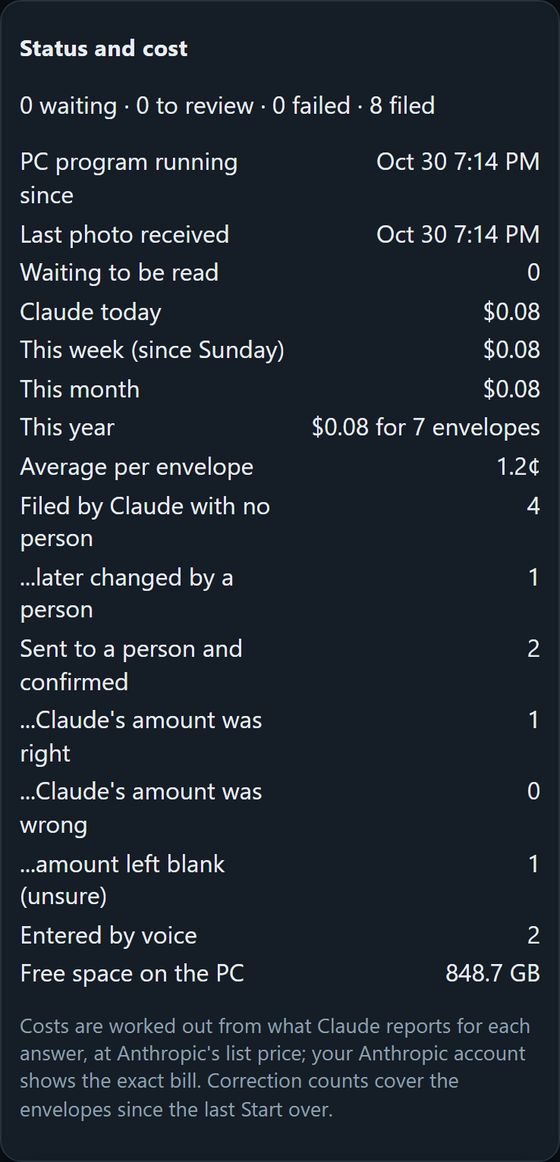
Setup > Status and cost on a phone shows what Claude has cost (today, this week, month, year, per envelope), worked out from what Claude reports for each answer at Anthropic's list price. The exact bill is in your Anthropic account. It also shows how often a person had to correct Claude: worth a look after the first few Sundays.
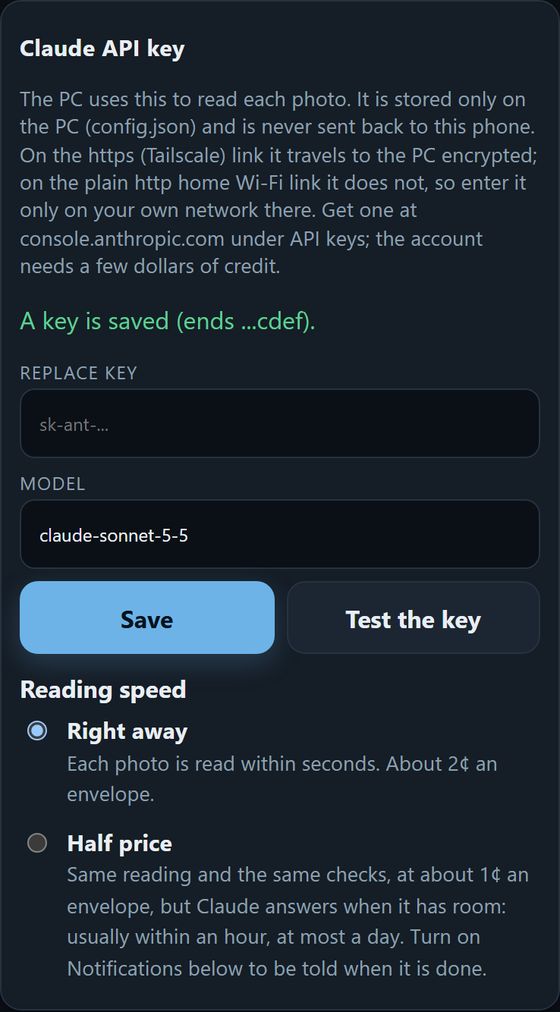
Setup > Reading speed > Half price sends photos to Claude's batch service instead: the same two readings and the same checks for half the cost, but answers come later (usually within an hour, at most 24 hours). Handy for a large catch-up stack. If the PC restarts meanwhile, the answers are still collected.
Setup > Notifications on each phone: that phone is told when half-price reading has finished. Works on the Tailscale (https) link and the installed app, not on the home Wi-Fi backup link. The notification itself carries no data: the phone fetches the news from the PC.
Setup > Status and cost.Setup > Reading speed.
A new year
Double-click START.bat: it shows the setup page address. Open it, load next year's Sundays in step 3 (and update the donor list if it changed), then click Finish setup. Phones warn when the Sundays loaded are for a different year.
The home Wi-Fi backup link
If Tailscale will not connect, a phone on the same Wi-Fi as the PC can use the plain address shown under Setup > Home Wi-Fi link (backup). Chrome only allows the camera there after a one-time change: open chrome://flags/#unsafely-treat-insecure-origin-as-secure, add the address, set Enabled, tap Relaunch. Use it only on a trusted network.
7. Year-end giving statements
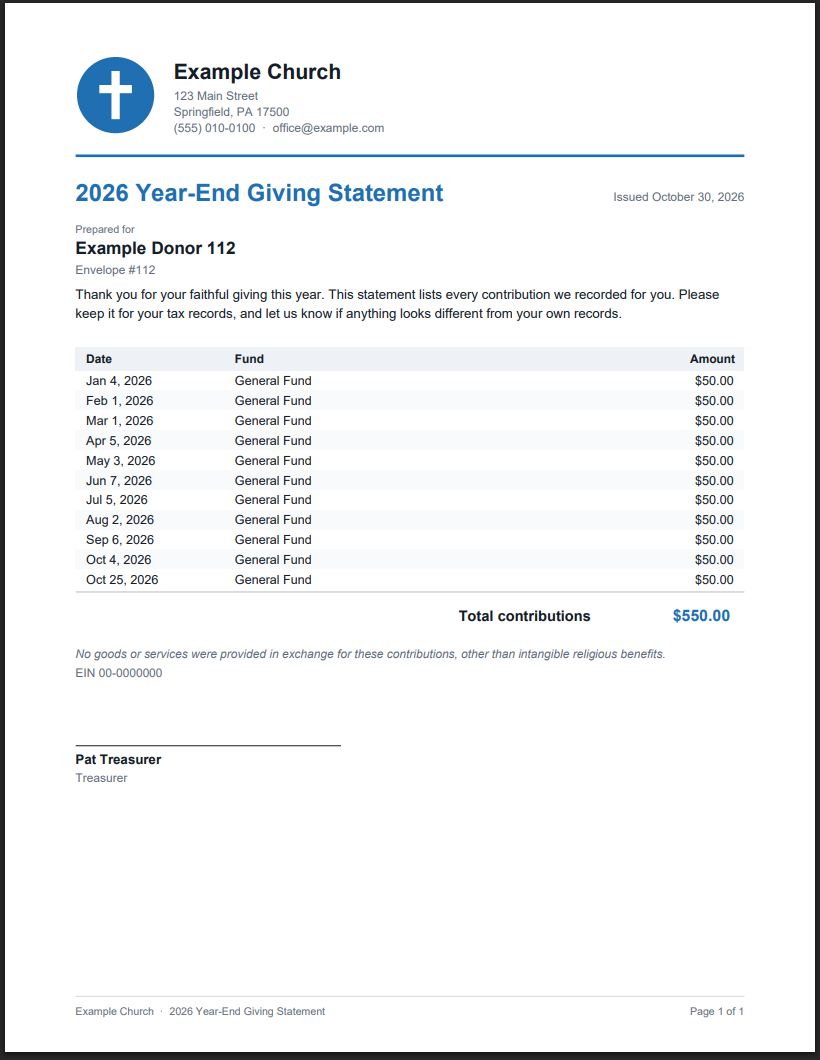
One PDF per donor for a calendar year: every gift with its date, fund and amount, totals by fund, the year's total, your tax wording and a signature line, in your church's branding. Admins open it from Setup > Year-end statements > Open statements on the phone (Tailscale link) or on the PC. People who only enter envelopes never see it.
Your edition. Statements come with the edition "with year-end statements". Bought without them? On the phone, Setup > Year-end statements says so: buy the Year-end statements upgrade in the store, paste its key there (as an admin) and tap Add year-end statements.
First, the branding (once)
On the Statements page, under Branding on the statements: the church's name as it should appear, address, a contact line, the colour, the title, a thank-you message, the tax wording, an optional charity or tax number, who signs (name and title), and a logo (PNG or JPG; it is resized and kept on the PC). Tap Save, then See a sample to check a statement for a made-up donor.
The default tax wording is the usual one for US churches ("No goods or services were provided in exchange for these contributions, other than intangible religious benefits"). Rules differ by country: check what your donors' statements need to say, and change it if needed.
Making the statements (January)
Finish the Review tab first. The page warns if any envelopes of the year are still waiting: statements leave them out until they are confirmed.
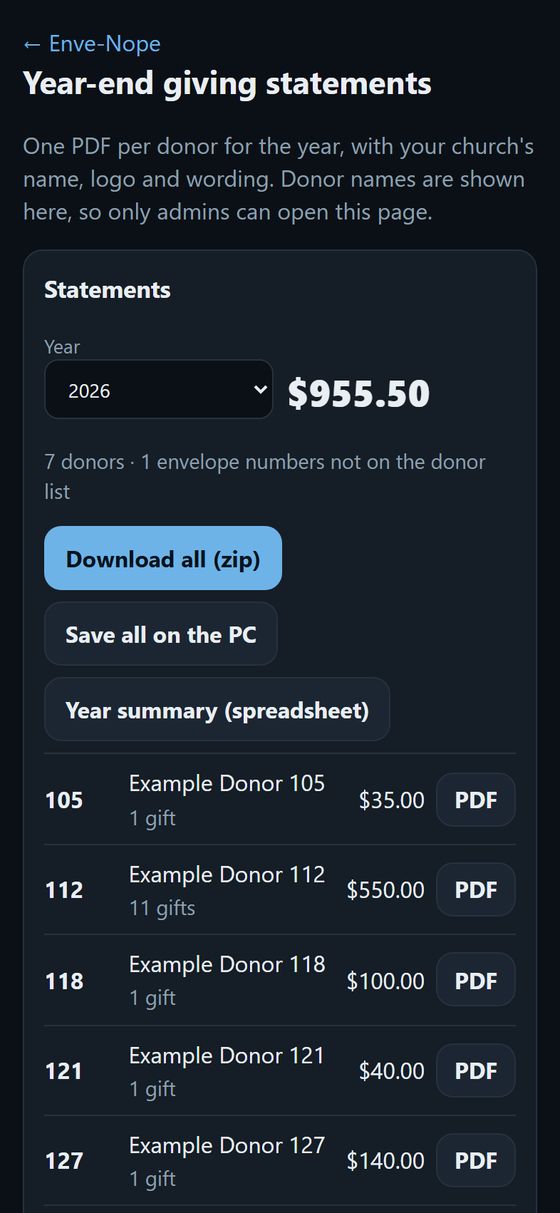
Pick the year. You see every donor with the number of gifts and the total, and the year's total.
Download all (zip) saves every statement, plus a summary, to your phone. PDF next to a donor saves just theirs. Save all on the PC writes them to captures\statements\<year>\ (one file per donor, named "envelope name.pdf").
Year summary (spreadsheet): envelope, name, number of gifts and total for each, for the treasurer's records.
Send each donor their file (email, print, or however your church does it).
Corrected an envelope after making them? Make them again: the files are replaced.
Envelope numbers not on the donor list get no statement; they are listed under the donors with their totals. Add them to the donor list (setup page on the PC, step 2) and they are included.
"Start over" moves earlier envelopes into an archive. If some of the year's gifts are there, the page says how many and offers to include them.
The Statements page (a made-up church).One donor's statement.
8. Updates
New versions are offered on the phone: Setup > Updates > Check for updates (admins). It shows the newest version and what changed.
Install update uses one update credit. Your activation key came with 5; the card says how many are left. When none are left, buy an Enve-Nope update key ($20) in the store and paste it on the card. One credit moves you to the newest version, however many versions you skipped.
If a download fails, tap Install update again: the same credit is used again, never a second one.
Before anything changes, the PC checks that the update is signed by the seller and that no file in it was changed. Anything else is refused and nothing is touched.
Your data and settings are never replaced: captures, church, config.json and the phone key stay as they are. Every program file that is replaced is first copied to _old_program\<old version>\.
Then the PC program restarts by itself (about a minute) and the phone page reloads.
9. How it decides what needs a person
Each photo is read twice: the whole envelope, then a close-up of the amount. An envelope is filed by itself only when all of these hold; otherwise it goes to the phone's Review tab:
both readings of the amount agree, and each is confident;
the amount is not crossed out or written over, and is under $1,000;
the envelope number is on the donor list;
the Sunday is known (picked for the stack on the phone, or read from the envelope);
it is not a second envelope with the same number for the same Sunday.
When the two readings disagree, the amount is left blank and both readings are offered: a person always decides. Envelopes read aloud are shown in a list and saved only after a person checks the list.
10. When something goes wrong
What you see
What to do
Phone: "Cannot reach the PC"
Is the PC on and awake? Is Tailscale on on the phone (and connected, not "Starting")? On the PC, is Tailscale signed in (system tray icon)? Photos taken meanwhile are kept on the phone and sent later.
Tailscale on a phone stuck on "Starting"
Long-press the Tailscale app > App info > Force stop, then open it again. On Samsung phones also set App info > Battery to Unrestricted. Turn off any other VPN app. If it asks to sign in again, do so.
Phone: "The PC turned down this phone's key"
The phone's Tailscale account is not on the People list (or the email differs). Check Setup > People.
Phone: "Claude rejected the API key" / "out of credit"
Add credit or create a new key at console.anthropic.com, then paste it in Setup > Claude API key on a phone (or the setup page). Photos wait and are read once it works.
Phone: "No Sundays are set up yet"
The setup page was not finished. Double-click START.bat on the PC and complete it.
Phone: "The offering schedule ... is for 2026"
Load the new year's Sundays (section 6, "A new year").
The spreadsheet is not updating
Close it in Excel. Use the phone's Download button meanwhile.
Half-price photos still waiting after a day
Check Setup > Status and cost for a warning, and that the PC is on and online. Switch Reading speed back to Right away: waiting photos, including those already sent in a half-price group, are then read at once (that group is cancelled, so it is not paid twice).
Updates: "No update credits left"
Buy an Enve-Nope update key in the store and paste it on the Updates card.
Updates: "The update was refused"
Nothing was changed. Try again later; the download may have been damaged.
Nothing works at all
On the PC, double-click START.bat. If it still fails, open station.log in Notepad: the last lines say why.
11. Privacy and security
Donor names never leave the PC. Phones only see envelope numbers; the spreadsheet holds date, number and amount only.
Photos are sent to Claude (Anthropic) to be read, over an encrypted connection, using your own API key.
Phones reach the PC only through Tailscale (private, encrypted, only your account's devices) or the home Wi-Fi backup link. Nothing is opened to the internet.
Only people on the People list can use the station. Each phone gets the station's key by itself over Tailscale; no key is ever sent in a message.
If you use speech on the Voice tab, the phone's own speech service turns the spoken numbers into text (on Android: Google). Only numbers are spoken.
Updates are installed only when signed with the seller's key; the update service never sees your data, only your key and which version.
Nothing is ever deleted: discarded photos and "Start over" are moved into folders starting with _.
Donor names appear only on the year-end statements, which only admins can open, and only on the Tailscale link or on the PC itself (never over the home Wi-Fi backup link).
Every change is recorded with the person's Tailscale name (set by the PC, not by the phone), so it is always clear who confirmed or changed an envelope.
Notifications pass through the phone maker's push service (Google, Apple) empty: no names, numbers or amounts.