A vibe-coded app (made with AI), with no support: this guide is the help. Questions? Ask your church's admin. Enve-Nope is a product of Cylindrium LLC.
User guide: getting it onto your phone and entering the week's offering envelopes. About 5 minutes to set up, once.
1. Join: accept the invite and install Tailscale
Enve-Nope runs on a PC at church (or at the treasurer's home). Tailscale is a free app that connects your phone to that PC privately, from anywhere. Your church's admin invites you.
Open the invite email from Tailscale and tap Accept invite. Sign in with the account it was sent to (for a Gmail address: Sign in with Google).
Install the Tailscale app on your phone: Play Store (Android) or App Store (iPhone). Search "Tailscale".
Open it and sign in with the same account you used for the invite.
When the phone asks to allow a VPN connection, tap OK / Allow. (It only connects you to the church PC; your other internet use is unchanged.)
Turn Tailscale on. It should say Connected.
Tailscale does not have to stay on all the time. Turn it on when you enter envelopes. On Android, add the Tailscale switch to your quick settings (swipe down from the top, tap the pencil, drag "Tailscale" in) for a one-tap switch.
2. Open Enve-Nope and add it to your home screen
Open the link your admin sent you (it ends in .ts.net/), with Tailscale on. Use Chrome on Android, Safari on iPhone.
The page sets itself up; you do not need a password. You see six tabs at the bottom: CaptureVoicePhotosReviewWeeksSetup.
Add it to your home screen so it opens like an app:
Android (Chrome): tap Setup > Install as an app, or Chrome's ⋮ menu > Add to Home screen / Install app.
iPhone (Safari): tap the Share button > Add to Home Screen.
The first time you use the camera or the microphone, allow it when the phone asks.
If the page says "The PC turned down this phone's key", ask your admin to check that your email is on their People list exactly as you signed in to Tailscale.
3. Entering a Sunday's envelopes: the short version
Turn Tailscale on. Open Enve-Nope.
Capture tab: pick which Sunday the stack is from, tap Start camera, and lay the envelopes on a dark surface one at a time. Each one beeps when it is taken. (Or use the Voice tab and read them aloud.)
When the stack is done, leave the Capture tab. A card shows how many photos were taken and whether all reached the PC.
Review tab: check the few envelopes the PC was not sure about, fix the number or amount if needed, and Confirm.
Weeks tab: compare the Sunday's total with the deposit slip.
4. Capture: photographing envelopes
Before you start
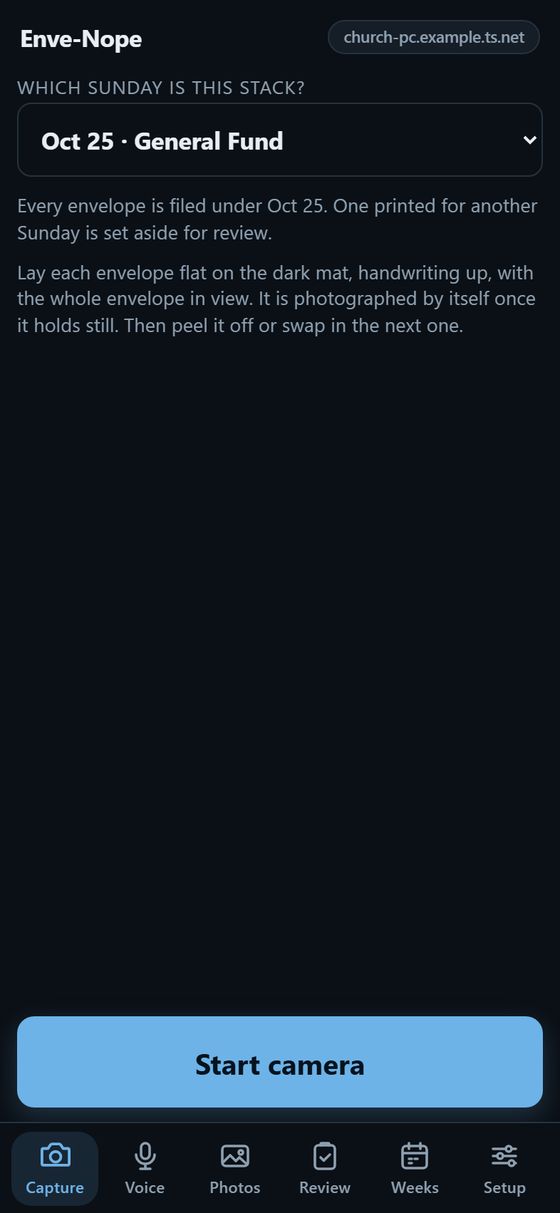
Pick the Sunday ("Which Sunday is this stack?"). Then every envelope is filed under that Sunday, and any envelope printed for a different Sunday is set aside for you to check. Pick Mixed Sundays / not sure only if the stack is mixed.
Put a dark cloth or mat under the phone, and hold or prop the phone above it with the whole envelope in view. Bright, even light helps; the light button turns on the phone's flashlight.
Taking the photos
Tap Start camera (at the bottom of the screen).
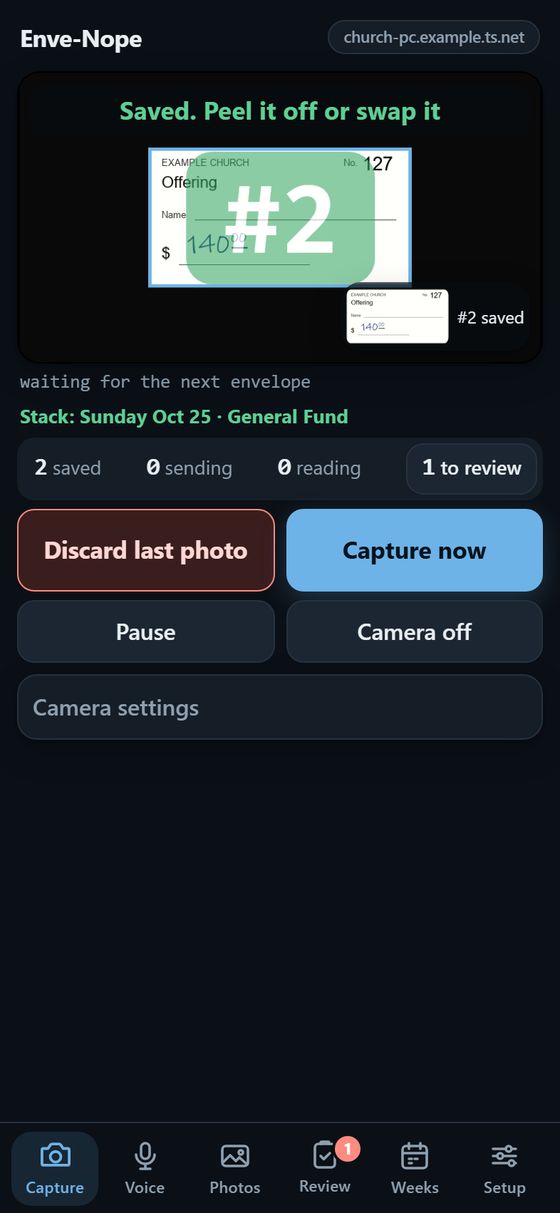
Lay an envelope on the mat, handwriting up. A green outline appears around it. Hold still: it is photographed by itself, with a beep and one buzz and a big number (#1, #2, ...).
Take it away or put the next one on top. Repeat.
Pick the Sunday, then Start camera.Each envelope is taken by itself: "#2 saved".
Button
What it does
Discard last photo
Throws away the newest photo at once (no question). The envelope still in view is taken again.
Capture now
Takes the photo right away (or tap the picture).
Pause
Turns the camera off for a moment; Resume turns it back on.
Camera off
Saves battery. Photos already taken keep sending.
Camera settings
Which camera is used, photos per envelope, and the Sunday.
The numbers under the picture: saved (on the PC), sending, reading (Claude is reading them), to review.
No photo gets lost. Every photo is kept on your phone until the PC confirms it has it. If the PC cannot be reached (no signal, Tailscale off), keep going: the photos wait and are sent when the connection is back, even if you close the page. A red banner tells you if photos have been waiting more than half a minute.
5. Voice: reading envelopes aloud
Instead of photographing, you can read the stack aloud: envelope number, then amount.
Voice tab: pick the Sunday and tap Start listening.
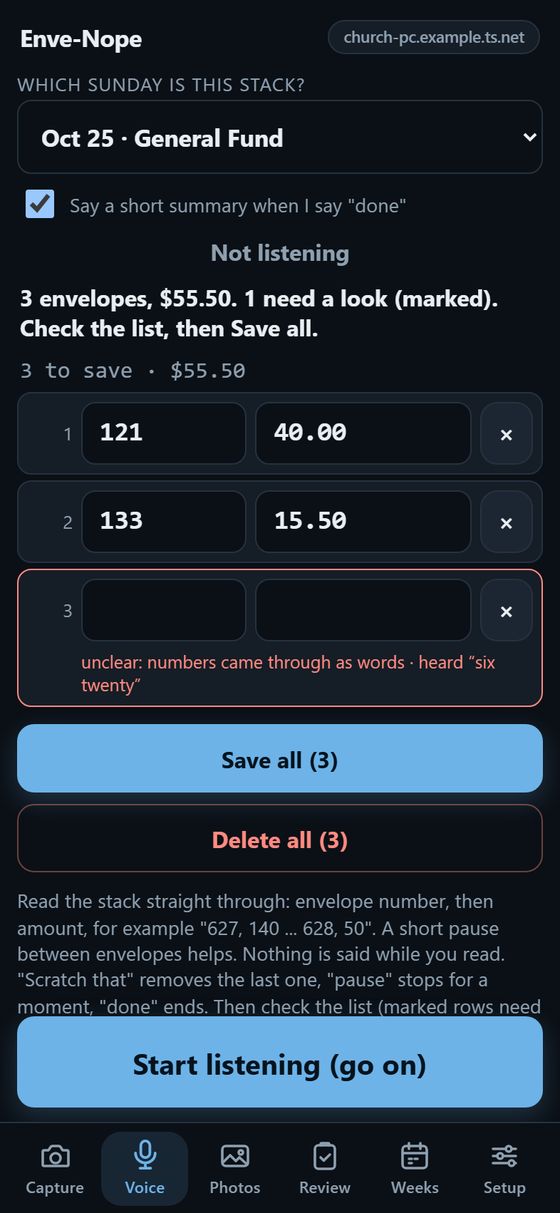
Read straight through, with a short pause between envelopes: "627, 140 ... 628, 50 ... 629, 75.50". Nothing is said back while you read; each envelope appears in the list.
Said one wrong? Say "scratch that" to remove the last one. "Pause" stops for a moment.
Say "done" (or tap Done). It tells you how many envelopes and the total.
Check the list. Rows marked red were unclear and need the number or amount typed in (or remove them with ×). Rows marked amber are worth a second look (not on the donor list, $1,000 or more, read twice).
Tap Save all. If the PC still has a doubt about one, its row shows Save anyway. Saved rows have Undo.
After "done": two clear rows, and a red one ("six twenty" came through as words) to type in or remove.
The list is kept on your phone until it is saved, so nothing is lost if the page closes. Say numbers as numbers ("627", not "six-two-seven" spelled out); anything unclear is never guessed, it becomes a red row.
Reading fast works, with a few things to know:
A short breath between envelopes gives the cleanest list. If two numbers run together ("627140"), that row is red: type it in.
If the phone cuts an envelope in half ("627" ... "140"), the halves are joined. A half that nothing completes within a few seconds becomes a red row.
When you tap Done, the phone first finishes the last words it heard. Words it had not finished are kept anyway, marked amber "heard as listening stopped": check those.
Compare the count with your stack after "done": it says how many envelopes it heard.
Delete all (tap twice) empties the list to start again. Rows already saved stay saved on the PC; change those on the Weeks tab.
6. Review: checking what the PC was not sure about
The red number on the Review tab is how many envelopes need you. One envelope per screen:
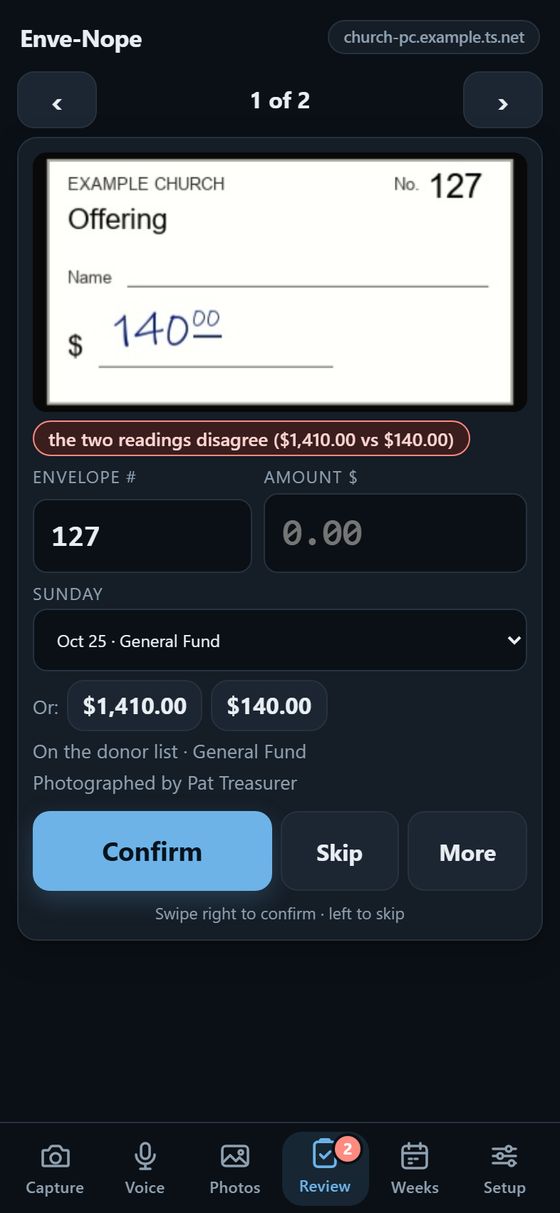
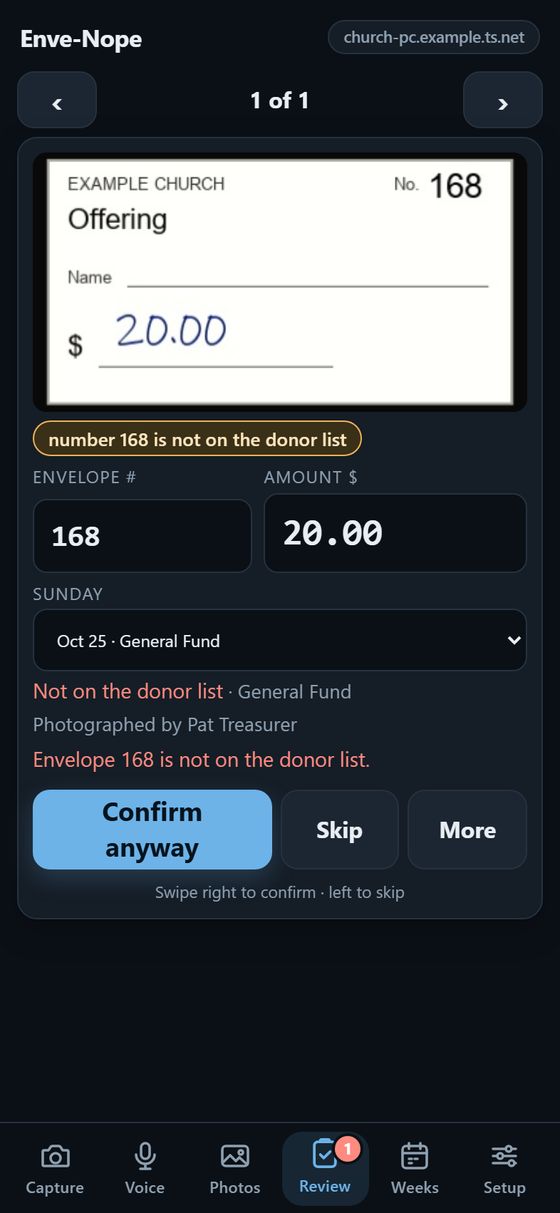
The photo (tap it to enlarge), the reason it needs a look (for example "the two readings disagree"), and the envelope number, amount and Sunday as read.
Fix anything that is wrong. If the two readings disagree, the amount is blank and both readings are shown as buttons under it: tap the right one, or type it.
Tap Confirm (or swipe the card to the right). Skip (or swipe left) moves on and comes back later.
If the PC still has a doubt (not on the donor list, a large amount, a second envelope for the same Sunday), the button changes to Confirm anyway: check, then tap again.
More: add a note, have it read again, or discard the photo.
The amount is blank because the two readings disagree: tap $140.00, then Confirm.A doubt remains (not on the donor list): check, then Confirm anyway.
The same envelope twice
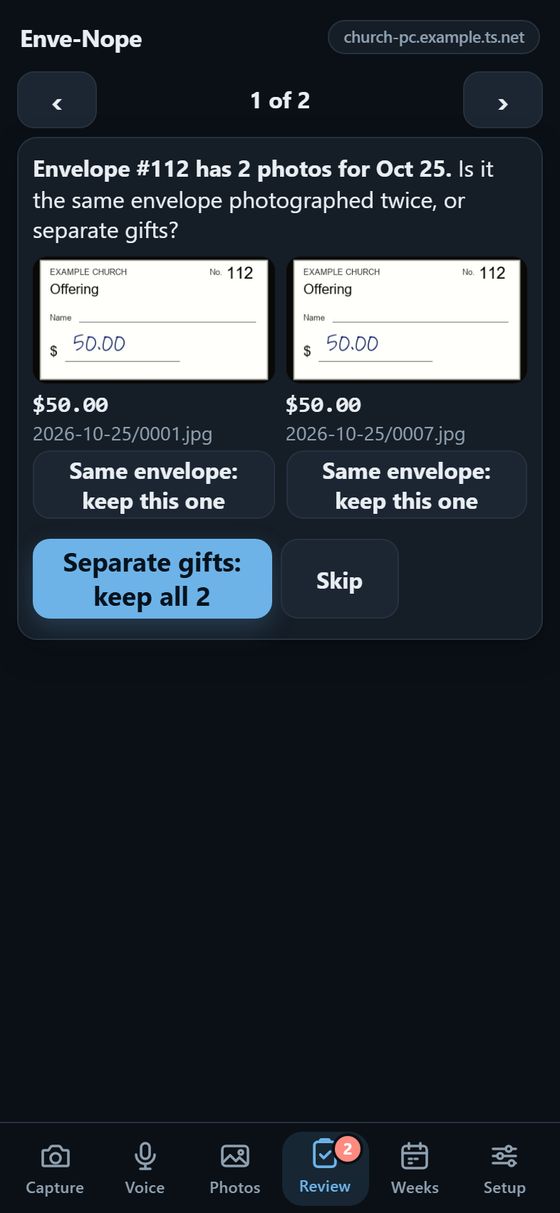
If two photos have the same envelope number for the same Sunday, you see both side by side. Tap Same envelope: keep this one under the better photo, or Separate gifts: keep all if they really are two gifts.
The same envelope photographed twice.
7. Photos: where each photo is
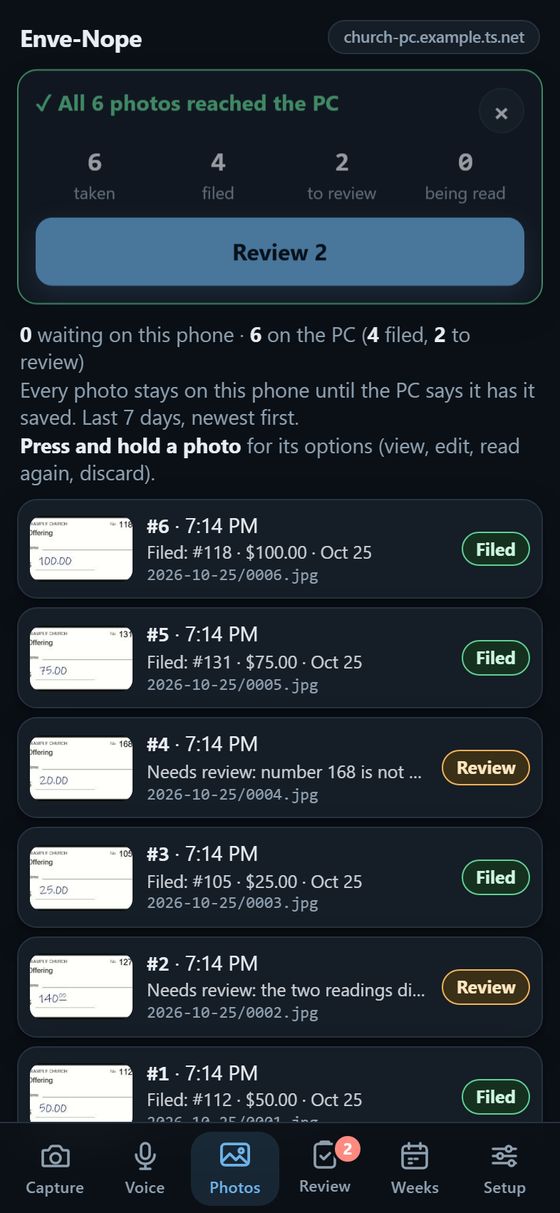
Every photo taken on your phone in the last 7 days, newest first, with where it is now: On phone (being taken, or waiting to send), On PC (being read), Review (needs you), Filed (number, amount and Sunday shown), or Discarded. A photo appears here the moment it is taken; the count on the Photos button shows how many are not on the PC yet.
Tap a photo that needs review to open it.
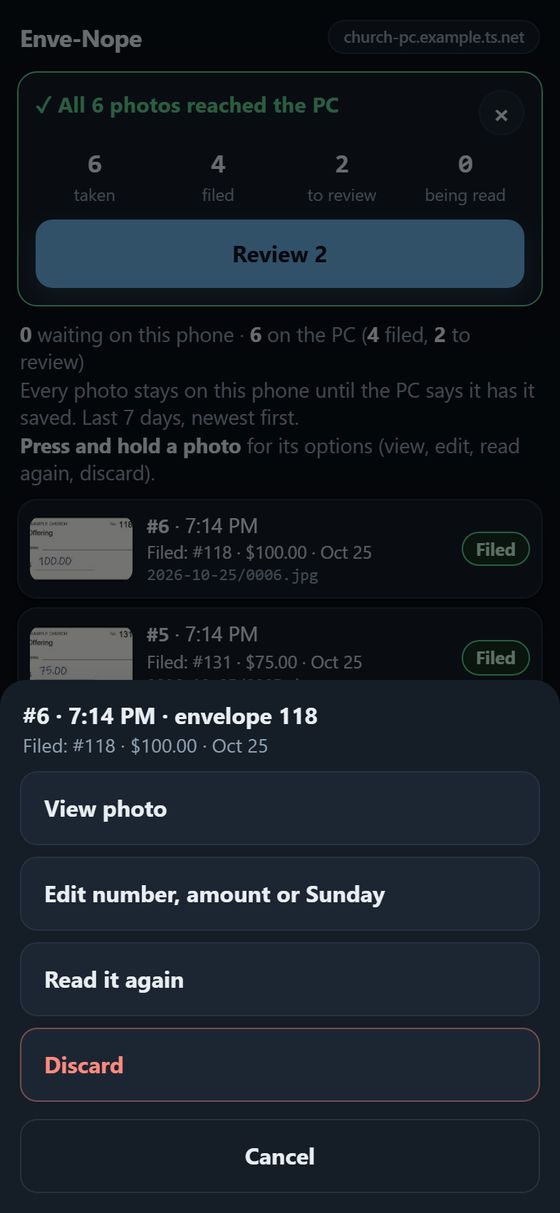
Press and hold a photo for its options: view it full size, open it in Review, edit the number or amount, send it now, have it read again, or discard it (asks twice).
After a stack: all 6 reached the PC, 4 filed, 2 to review.Press and hold a photo for its options.
8. Weeks: totals and the spreadsheet
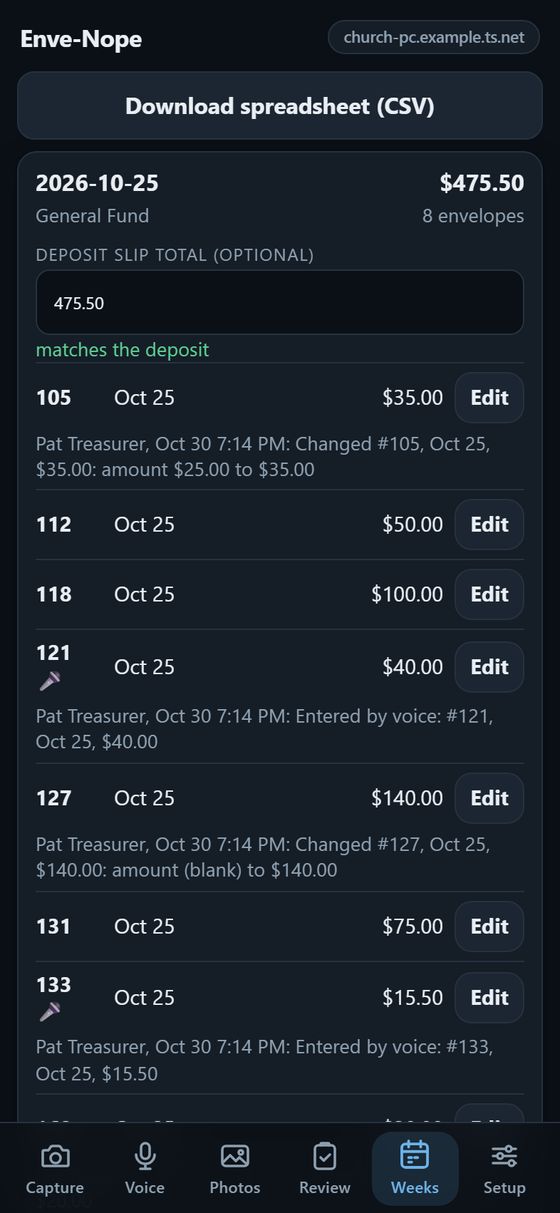
One row per Sunday with the number of envelopes and the total. Tap a Sunday to see each envelope.
Type the deposit slip total to compare: it shows whether it matches, or how much more or less.
Edit opens any filed envelope to correct it. A 🎤 marks envelopes entered by voice. Under an envelope someone changed, a grey line says who changed it, when, and from what to what.
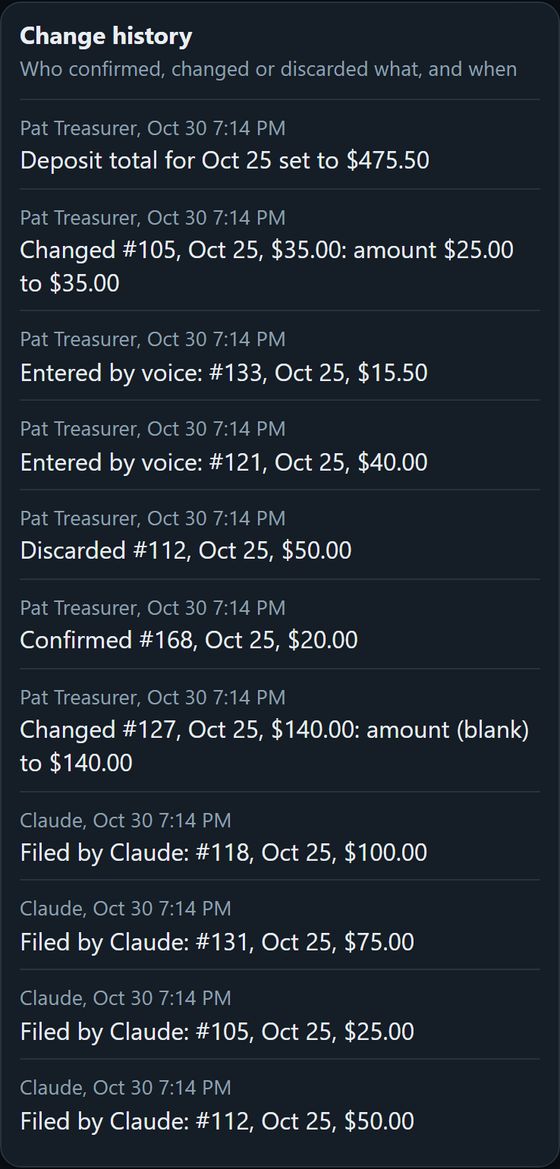
Change history (at the bottom): every confirm, change, discard, voice entry and deposit total, newest first, with who did it and when. "Claude" means the PC filed it by itself.
A Sunday opened: the deposit matches, and changed envelopes say who changed them.Change history, newest first.
9. Setup: status, cost and notifications
What you can see depends on your role. If your admin set you up to enter envelopes only, you have Capture, Voice, Photos and Review, and Setup shows just Help, Notifications and Install. Totals, settings and year-end statements are for admins.
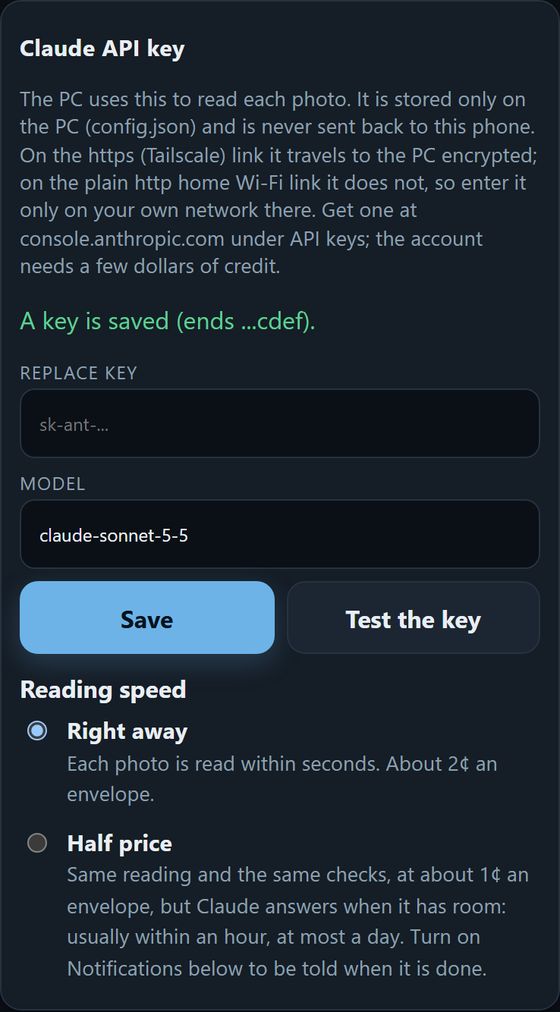
Reading speed: Right away (each photo is read within seconds) or Half price (the same reading and checks for about half the cost, but the answers come later: usually within an hour, at most a day). Photos waiting for half-price reading show as waiting for half-price reading on the Photos tab. Switching back to Right away reads the waiting photos at once, including those already sent in a half-price group.
Year-end statements (admins): one PDF per donor for the year, in your church's branding. See the admin guide.
Updates (admins): Check for updates, then Install update. See the admin guide.
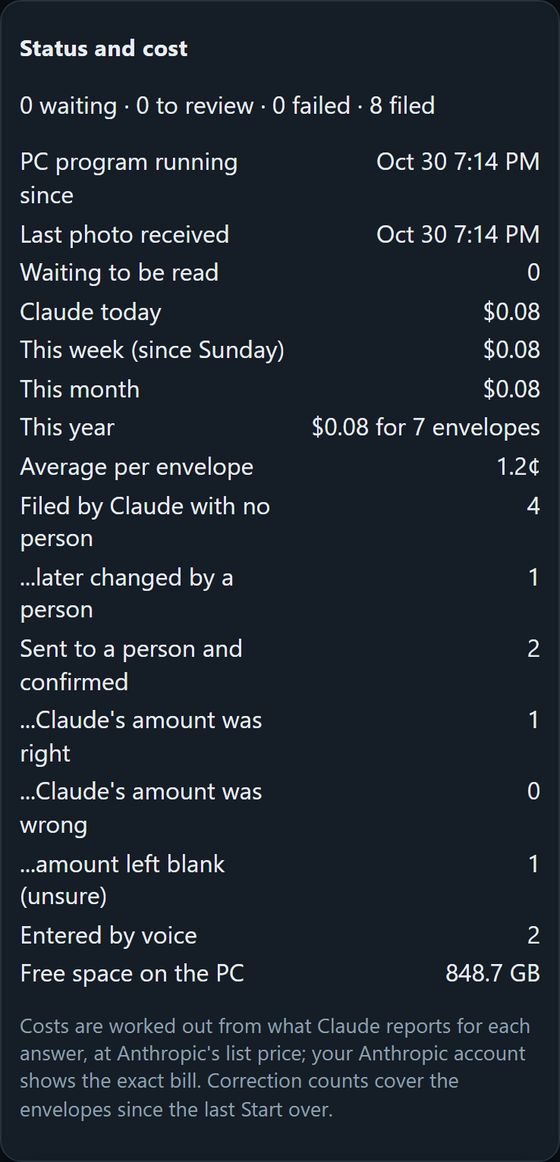
Status and cost: whether the PC is running, when the last photo arrived, what Claude has cost today, this week, this month and this year, and how often a person had to correct it.
Notifications: tap Turn on notifications and allow them. This phone is then told when half-price reading has finished, even with the app closed; tap the notification to go straight to Review. It works on the .ts.net link and in the installed app (on iPhone: only from the home screen app).
Reading speed, under the Claude key.Status and cost.
10. If something is not working
What you see
What to do
"Cannot reach the PC"
Turn Tailscale on (and check it says Connected). If it still does not work, the PC may be off or asleep: tell your admin. Your photos are safe on the phone meanwhile.
Tailscale stuck on "Starting"
Long-press the Tailscale app > App info > Force stop, then open it again. On Samsung phones also set Battery to Unrestricted. If it asks you to sign in again, do so.
"The PC turned down this phone's key"
Your email is not on the admin's People list (or is spelled differently). Ask your admin.
The camera does not start
Allow the camera for the page (the icon left of the address in Chrome), and make sure you opened the https://...ts.net link.
Photos look blurry
More light, hold steadier, or set Camera settings > photos per envelope to 2 or 3 (the sharpest is kept).
No notification arrives
Setup > Notifications > Send a test. If nothing comes, allow notifications for this site in Chrome (⋮ > Settings > Site settings > Notifications) and on Samsung set the browser's battery use to Unrestricted.
Voice does not hear anything
Allow the microphone for the page; on iPhone, use Safari and make sure Dictation is on.
The red or amber banner at the top always says what is wrong and, if there is something to do, has a button for it.